 Split & Sku
Pick Faster, Print Less
Keep buying and printing labels in Shopify exactly as you do today. Split & Sku adds SKUs, product names or your own text to the blank space of each 4×6 label, and ships items separately or together automatically.
Get it on the Shopify App Store14-day free trial. Works with Shopify’s own Create shipping label and Print buttons.
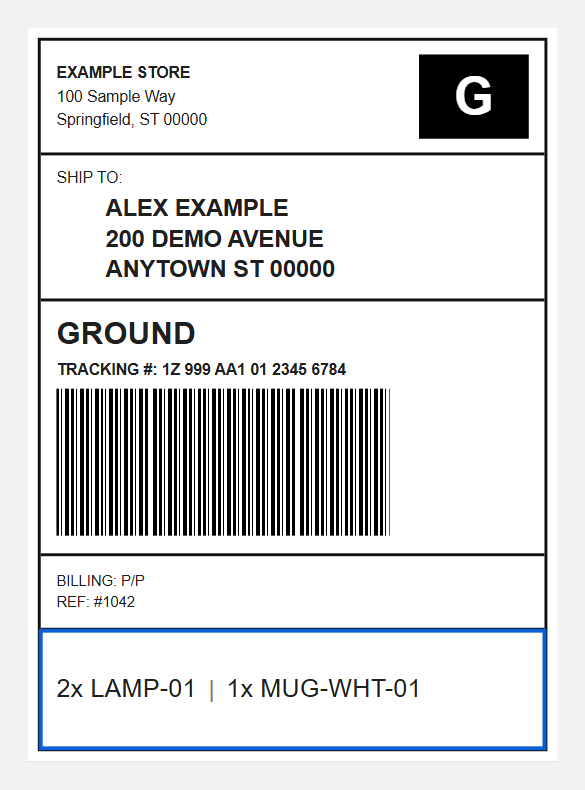
No change to how you ship
Buy and print labels in Shopify, just like today
Set up what prints once. After that, there’s nothing new to learn: no exports, no separate print screen, no new app to buy labels in.
Buy labels in Shopify
Use Shopify’s own Create shipping label, one order at a time or in bulk, with your usual carriers and rates.
Click Print
The same Print button you use now. The Split & Sku extension adds the SKUs before the label opens.
Labels print with SKUs
Every label in the batch comes out with its items printed in the blank space, ready to pick and pack.
Features
Pack faster without opening the packing list
Everything happens on the labels you already buy and print in Shopify.
Works with Shopify’s own label buttons
No new steps at the packing table. Buy labels in Shopify as usual and click Print: the Split & Sku browser extension adds the SKUs before the label opens, for one label or a whole batch.
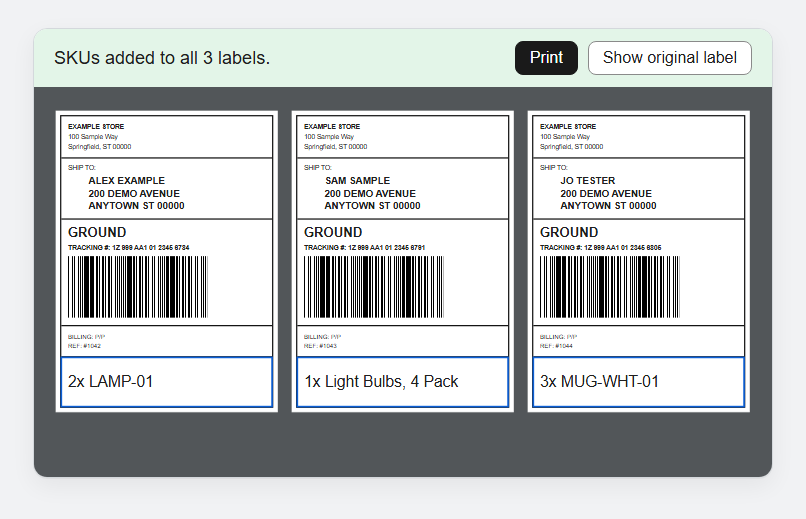
Each item at its own size
Print short SKUs large and long product names small. On a label with both, each item keeps its own size. When a package has too many different items to fit, the label says so instead.
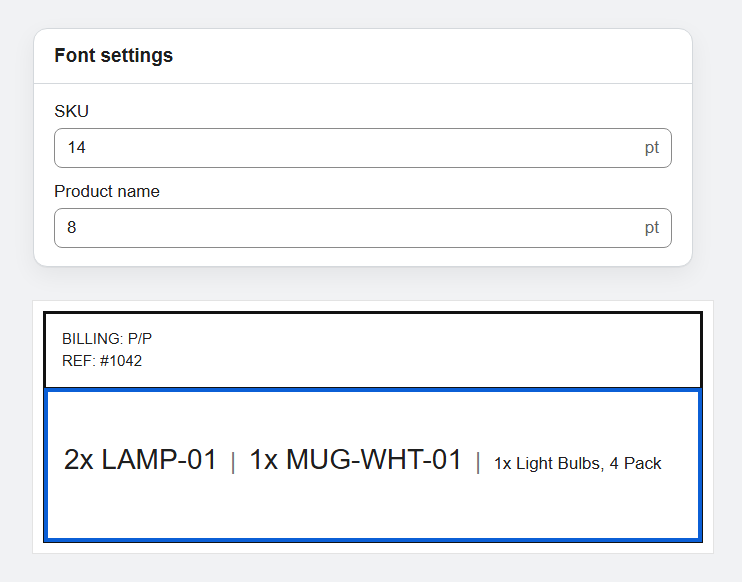
Choose what prints, product by product
SKU for most items, the product name for accessories, or your own short text. Set it per product or per variant, or use exceptions for a whole collection, tag or product type.
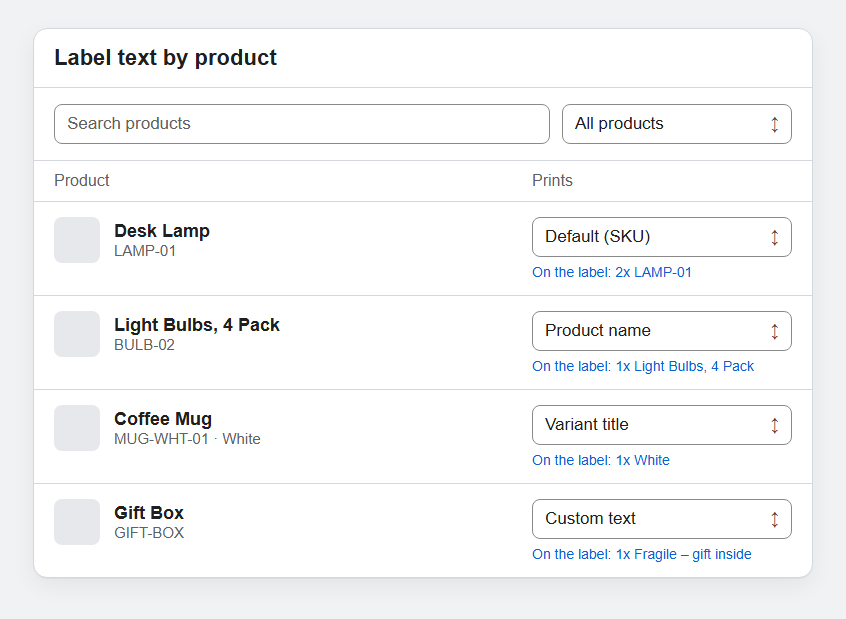
Ship items separately, automatically
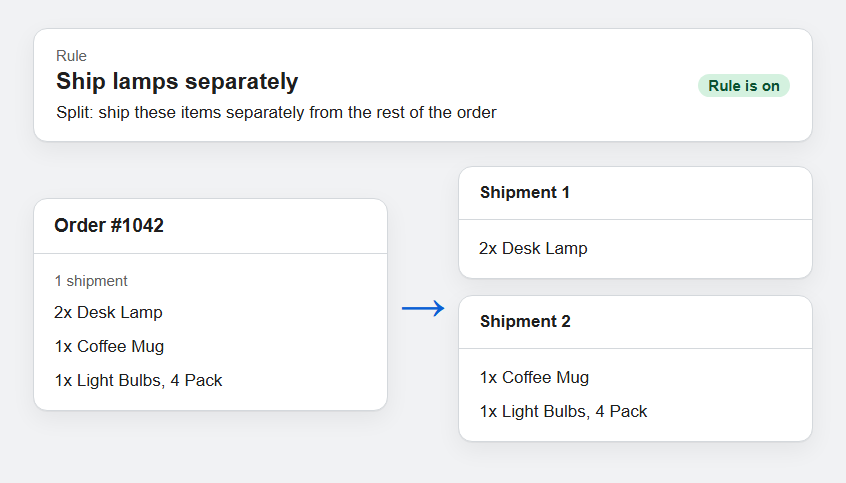
Rules split or merge shipments as soon as an order comes in, before you buy labels. Choose items by SKU, product, collection, tag or product type, and add items that should travel with them, like light bulbs with a lamp.
Place the text exactly
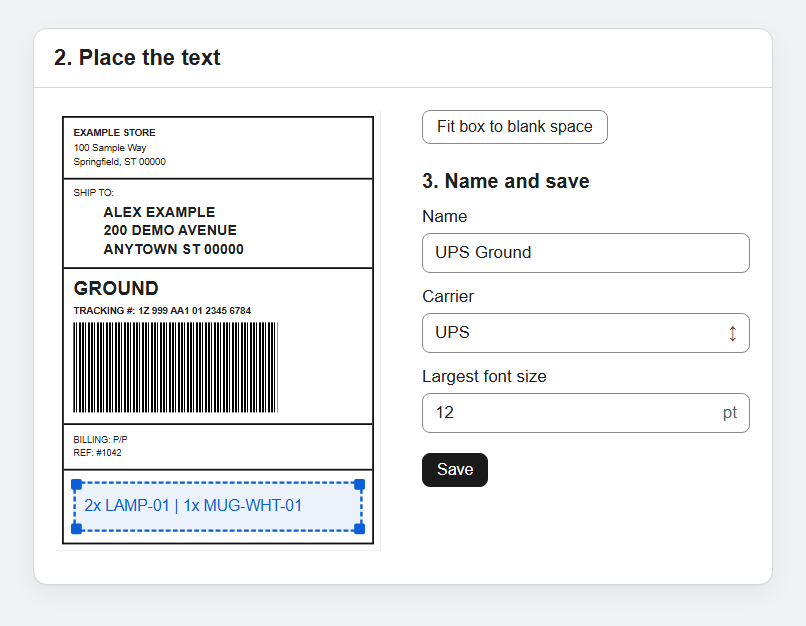
Drop in one of your own labels and draw where the text goes. Each carrier service can have its own spot, and Split & Sku matches each new label to the right one automatically.
How it works
Set up in a few minutes
Install the app
Add Split & Sku from the Shopify App Store and open it from Apps in your Shopify admin.
Choose what prints
Pick SKU, product name or variant title, set font sizes, and add a custom placement for each carrier service you use.
Add the browser extension
For Chrome and Microsoft Edge or Firefox. Connect it with the code from the app.
Print as usual
Buy labels in Shopify and click Print. Your labels open with the SKUs already on them.
Pricing
One plan, everything included
$5 per month
Billed through Shopify, with a 14-day free trial.
- SKUs, product names or custom text on your labels
- Custom placements for every carrier service
- Split and merge rules
- Browser extension for Chrome, Edge and Firefox
FAQ
Questions
Do I have to change how I buy and print labels?
No. Keep using Shopify’s own Create shipping label and Print buttons, one order at a time or in bulk. Once you’ve chosen what prints, the browser extension adds it to each label when you click Print. There’s no export, no separate print screen and no new place to buy labels.
Which labels does it work with?
4×6 shipping labels you buy in Shopify. Split & Sku finds the order for each label by its tracking number and prints that order’s items in the blank space you choose.
Does it work with all carriers?
Yes, any carrier’s 4×6 label you buy in Shopify. UPS, USPS, FedEx and DHL each have their own placement settings, and all other carriers share one, so the text lands in the right spot on every label.
What happens when there are too many items to fit?
Each item is printed at its own size, so most labels fit easily. You also choose a limit: when a package has more different items than that, the label prints “High Order Count – See Packing List” instead, so nothing gets cut off.
Can I set a different placement for each carrier service?
Yes. Drop in one of your own labels and draw where the text goes, for example one spot for UPS Ground and another for USPS Priority Mail. Split & Sku matches each new label to the right placement automatically.
Do I need the browser extension?
It’s what adds the SKUs when you click Print in Shopify. Without it, you can still open a stamped label from the app.
Will rules change orders I’ve already started?
No. Shipments that are partly fulfilled, or handled by a fulfillment service, are never changed. Merges only happen between items that ship from the same location.
Can I turn stamping off?
Yes. Stamping can be switched off in the app at any time, and labels then print exactly as Shopify made them.
Is my data stored?
Only what the app needs to work: your settings, rules and placements, and an activity log of order numbers and SKUs. Labels are processed in memory and never kept, and customer names, addresses and payment details are not stored. Everything is deleted within 48 hours of uninstalling. See the privacy policy for details.
How do I get help?
Email info@burnerbuddy.com. The app also has a step-by-step Help guide on its home page.